Create and share a lead form
Make a lead form, activate it to get its public link, and share the link so people can send you their details.
A lead form is a simple page people fill in to send you their details. Each person who sends it becomes a Kasturi contact and shows up in your Lead Funnel. The same forms also show in Kasturi under Lead Forms.
Who can do this
Owners, admins and members can create, edit, activate, pause and delete forms. Viewers can see the forms but not change them. The demo workspace is read-only, and its forms are samples with no public page.
Steps
Create a form
- Open Jebat and choose Lead Forms in the side menu.
- Click Create new form.
- Fill in:
- Name (required, up to 120 characters), for example "Raya promo signup".
- Category (optional, up to 60 characters). Pick a suggestion or type your own.
- Short name: a label for your own use, made from the name until you type your own. Use 2 to 60 lower-case letters, numbers and hyphens, such as
raya-promo. - Status: Draft, Active or Paused.
- Consent sentence: the sentence visitors tick to agree before they can send the form, up to 300 characters.
{workspace}in it becomes your workspace's name.
- Click Save form.
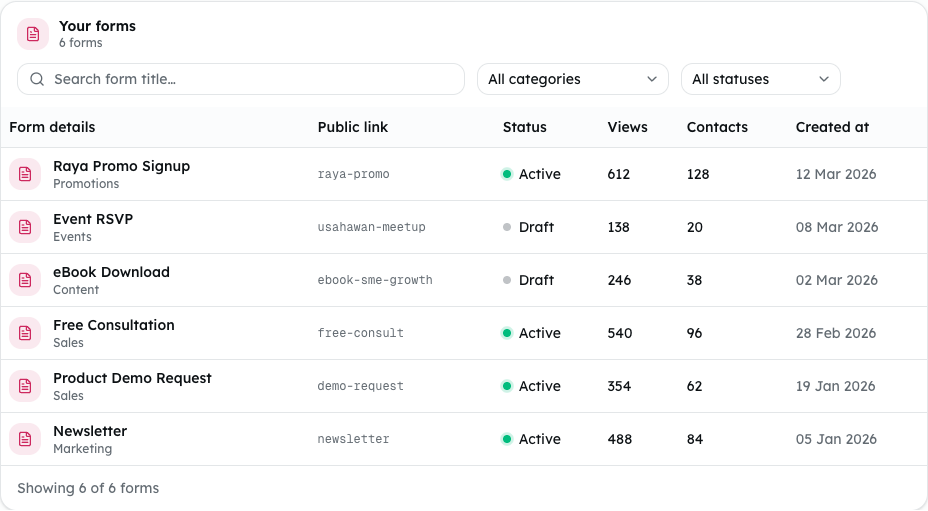
Shown from the sample workspace, where editing is switched off.
The demo's forms are samples, so the picture shows only each form's short name under Public link. In your own workspace, an active form also shows its link with Copy link and Open.
Share the link
- Make sure the form is Active. If it is not, open the ⋯ menu on its row and choose Activate.
- In the Public link column, click Copy link, then paste the link wherever you want people to find it. Click Open to see the page yourself.
The public page asks for Name, Email, Phone (optional) and Message (optional), and has a tick box beside your consent sentence. Views counts visits to the page; visits by people in your workspace are not counted. Contacts counts the forms sent.
Pause, edit or delete a form
- To stop taking responses, open the ⋯ menu and choose Pause. Visitors then see "This form is not accepting responses."
- To change a form, open the ⋯ menu, choose Edit, change it, and click Save changes.
- To delete it, open the ⋯ menu, choose Delete, then click Delete form. Its public link stops working and its submissions are deleted, but the contacts they made stay. This cannot be undone.
Find a form
Search by name or short name in Search form title…, or narrow the list with All categories and All statuses. Click Clear filters to see every form again.
Read the figures
- Total forms counts your forms.
- Total leads counts everything sent through all your forms.
- Conversion is what was sent divided by the views.
- New today and Submissions over time count what came in today and over the last 14 days.
- Top forms by contacts shows the forms with the most contacts.
Common problems
- "Activate this form to get its link." Only an active form has a public link.
- "Another form already uses that short name." Pick a different short name.
- "Use only lower-case letters, numbers and hyphens in the short name, such as raya-promo." The short name has other characters in it, or is shorter than 2 characters.
- "Enter a name for the form." or "Enter the sentence visitors tick to agree." A required field is empty.
- "Keep the consent sentence to 300 characters or fewer." Shorten the sentence.
- "That form no longer exists." Someone else deleted it. Refresh the page.
- "This form is receiving a lot of responses right now. Try again in a minute." Visitors may see this when many people send the form at once.