Add and manage contacts
Add, edit and delete contacts in Kasturi, add follow-ups, and find people with views, tags and filters.
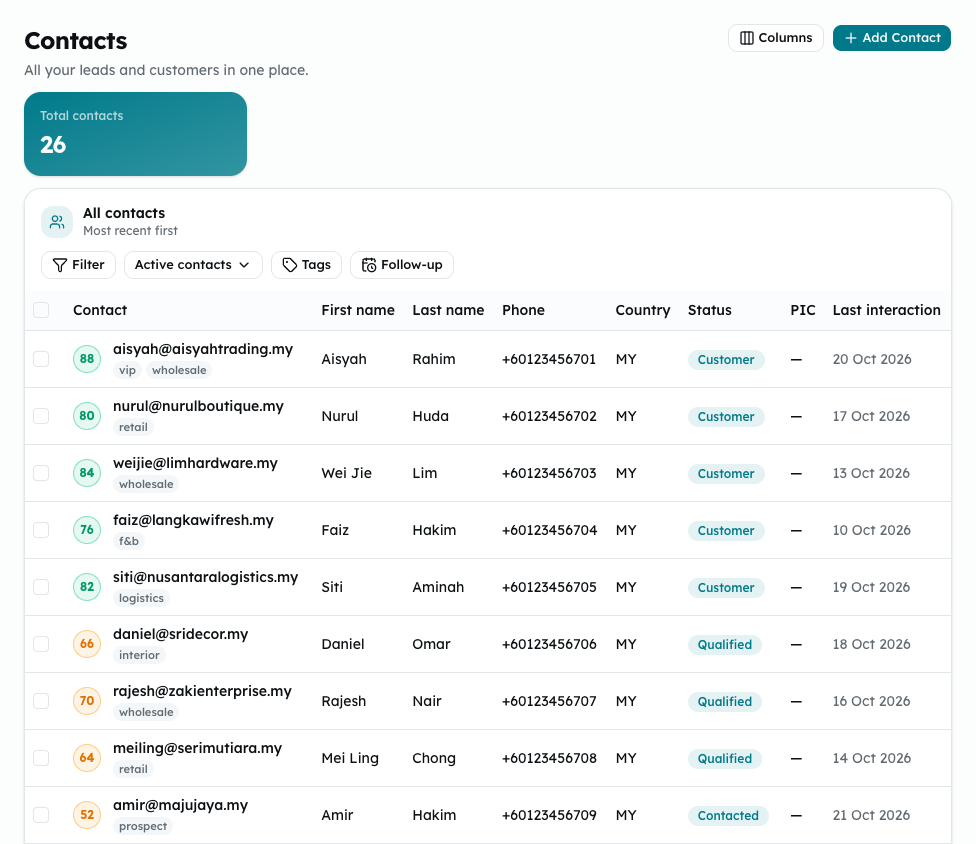
Contacts holds all your leads and customers. Each contact can have tags, a lead score, a person in charge and follow-ups.
Who can do this
- Everyone in the workspace can see contacts.
- Owners, admins and members can add, edit and delete contacts and follow-ups. Viewers can only read.
Steps
Add a contact
- Open Kasturi and choose Contacts.
- Click Add Contact, then Add one contact.
- Fill in First name and Email. These two are needed.
- Add the rest if you have it: Last name, Phone, Company, Country code, Status, Lead score (0 to 100) and Tags (separated by commas). Billing customer links the contact to the Bendahara customer it is invoiced through.
- Click Save contact. The form clears so you can add the next one. Click Close when you are done.
You become the person in charge (PIC) of the contacts you add.
Edit or delete a contact
- Click the ⋯ button at the end of the contact's row.
- Choose Edit, change what you need, and click Save changes.
- To delete, choose Delete, then Delete contact. The contact's deals, notes and follow-ups are deleted too. This cannot be undone.
From the same menu, Create deal opens a new deal for that contact.
Add a follow-up
- Under the contact's email, click + Add follow-up.
- Type what to follow up on, and pick a due date if you want one.
- Click Save.
- When it is done, click Done beside it.
Follow-ups with a due date also show on the Calendar.
Find contacts
- Use the view menu to choose Active contacts, New leads, Contacted, Qualified, Customers, Archived or All contacts. Active contacts leaves out archived ones.
- Use Tags to show only contacts with the tags you tick.
- Use Follow-up to show With a follow-up or Overdue only.
- Click Filter to search by name, email, company, phone or tag, and to narrow by Lead score, PIC or Country.
- Use Columns to hide or show columns. Your choice is kept in this browser.
Common problems
- Enter a first name. or Enter a valid email.: both are needed for every contact.
- Use a two-letter country code, such as MY.: type the code, not the country name.
- Use at most 10 tags per contact. or Keep each tag to 30 characters or fewer.: separate tags with commas.
- Enter what to follow up on. or Keep the follow-up under 200 characters.: check the follow-up text.
- The screen loads your 500 most recent contacts. Views, filters and search cover only those.
- Archived can only be chosen when you edit a contact, not when you add one.