Automations
Make Kasturi add a follow-up, a tag or a status by itself when a contact is added, a form is sent or a deal moves.
An automation is a rule of the form "when this happens, do that". Each one has one trigger and one action, and runs by itself the moment the event happens.
Who can do this
- Everyone in the workspace can see the automations and what they have done.
- Owners, admins and members can add, change, switch on or off, and delete automations. Viewers can only read.
Steps
Add an automation
- Open Kasturi and choose Automations.
- Click New automation.
- Type a Name.
- Under When, choose what sets it off in This happens:
- A contact is created: however the contact is added, by hand, by Kasturi AI, by an import or from a lead form.
- A lead form is submitted: choose a Lead form, or Any lead form. It runs each time someone sends the form, including people who are already a contact.
- A deal arrives in a stage: choose the Stage. It runs when a deal is moved into that stage, or created in it.
- A deal is won or A deal is lost.
- Under Then, choose what it does in Do this:
- Add a follow-up: type the Follow-up, and set Due in (days) or leave it empty for no due date. It appears on the contact and on the calendar. Nobody is sent a message.
- Add a tag: type one Tag. Nothing happens if the contact already has it.
- Set the contact’s status: choose the Status. An archived contact is left as it is.
- Click Save automation. A new automation starts switched on.
For a deal trigger, the action is taken on the contact the deal belongs to.
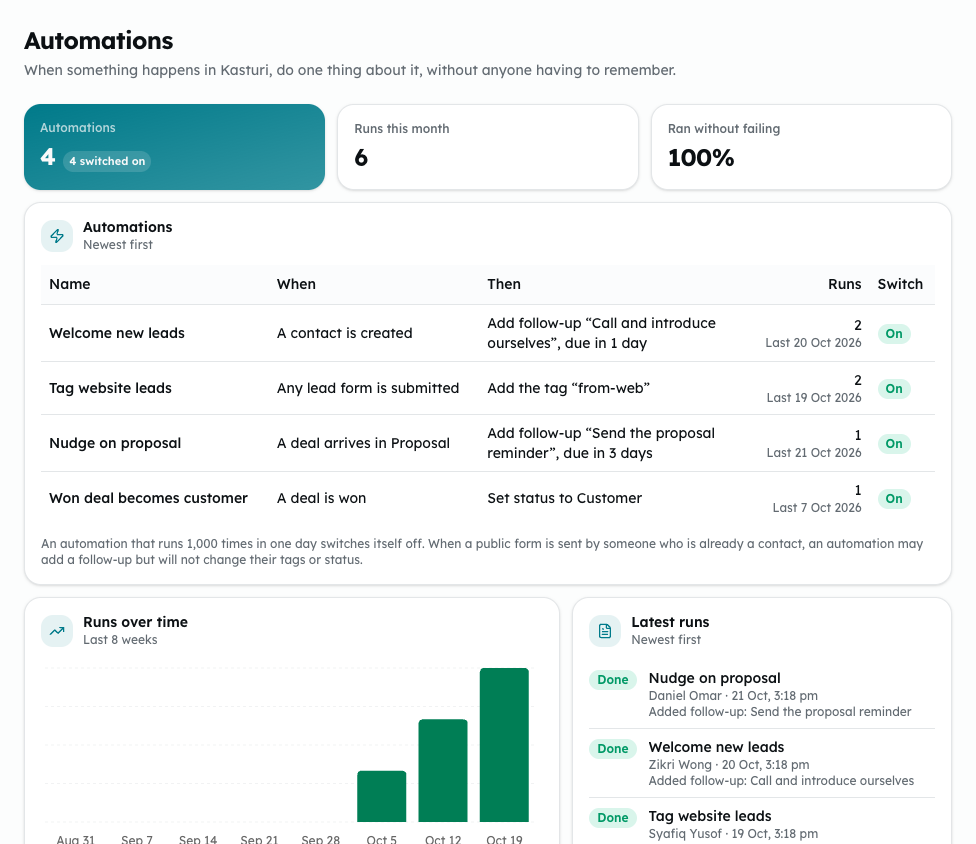
Shown from the sample workspace, where editing is switched off.
Switch it on or off, edit or delete it
- In the Automations list, use the switch in the Switch column to turn it On or Off.
- Click its edit button to change it, then Save changes. The edit form also has Switched on.
- Click its delete button, then Delete automation. Its record of runs is lost, but what it already did stays. This cannot be undone.
See what it did
- Runs over time shows runs for recent weeks.
- Latest runs shows each run as Done, Nothing to do or Failed, with the contact.
Common problems
- Choose the stage a deal must arrive in. or Choose a lead form, or "Any lead form".: pick one for the trigger.
- Say what the follow-up is for.: type the follow-up.
- Enter a number of days from 0 to 365, or leave it empty for no due date.: fix Due in (days).
- Enter one tag, without commas.: an automation adds one tag.
- The stage or lead form you chose no longer exists. Choose another.: it was deleted. Edit the automation and choose another.
- A workspace can have at most 50 automations switched on. Switch one off first.
- An automation that runs 1,000 times in one day switches itself off.
- When a public form is sent by someone who is already a contact, an automation may add a follow-up but will not change their tags or status.