Lead forms in Kasturi
Make a public lead form in Kasturi, share its link, and see each response arrive as a contact.
A lead form is a public page where people leave their name and email. Each response becomes a contact in Kasturi. Kasturi and Jebat share the same forms, so a form made in one shows in the other.
Who can do this
- Everyone in the workspace can see the forms and their responses.
- Owners, admins and members can create, edit, pause, activate and delete forms, and delete responses. Viewers can only read.
Steps
Create a form
- Open Kasturi and choose Lead Forms.
- Click Create new form.
- Type a Name. Add a Category if you want one.
- Leave Short name empty to make it from the name, or type your own: lower-case letters, numbers and hyphens. It is a label for your own use.
- Choose the Status: Draft, Active or Paused. Only an active form takes responses.
- Check the Consent sentence. Visitors tick a box beside it before they can send the form. {workspace} becomes your workspace's name.
- Click Save form.
Shown from the sample workspace, where editing is switched off.
Share the form
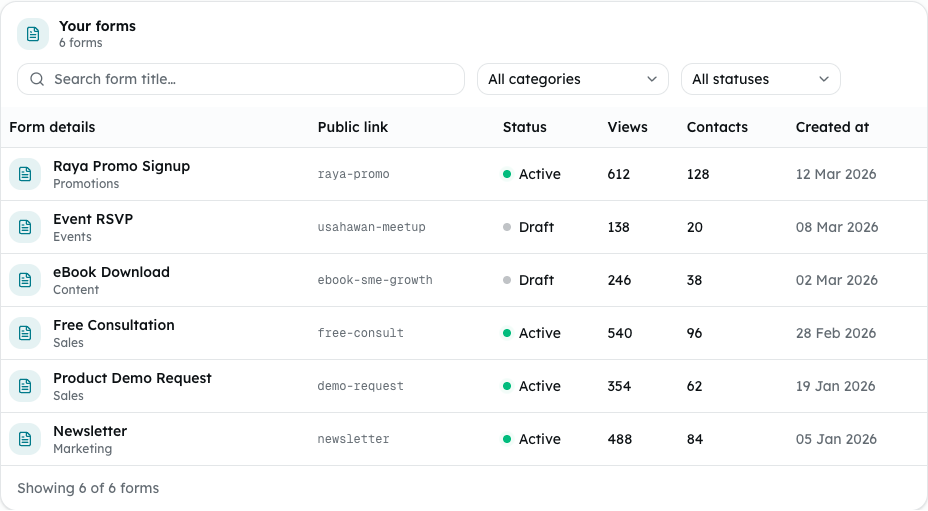
- Find the form under Your forms. An active form shows its link under Public link.
- Click Copy link to copy it, or Open to see the form in a new tab.
A form that is not active shows Activate this form to get its link.
See the responses
- Click View beside the number under Contacts.
- The Submissions card lists the latest responses and the consent each person gave.
- Click Contact in Kasturi to open the person's contact. To remove a response, click Delete, then Delete submission.
What happens to a response
- The form asks for Name and Email, and an optional Phone and Message.
- A new email becomes a new contact with the status New Leads, the tag lead-form, and the form's name as its source.
- If the email is already a contact, the response is linked to that contact. The contact is not changed.
- An automation set to A lead form is submitted runs on each response.
Pause, edit or delete a form
- Open the form's ⋯ menu.
- Choose Edit, Pause (or Activate), or Delete.
- Deleting asks you to confirm with Delete form. Its public link stops working and its responses are deleted, but the contacts they created stay. This cannot be undone.
Common problems
- Enter a name for the form. or Keep the name to 120 characters or fewer.: check the name.
- Use only lower-case letters, numbers and hyphens in the short name, such as raya-promo.: fix the short name.
- Another form already uses that short name.: pick a different short name.
- Enter the sentence visitors tick to agree. or Keep the consent sentence to 300 characters or fewer.: check the consent sentence.
- Visitors see This form is not accepting responses. when the form is a draft or paused.
- Visitors see This form is receiving a lot of responses right now. Try again in a minute. when a form gets many responses at once (30 in a minute), or when the workspace's forms have taken 1,000 responses in a day between them.
- A visitor who sends many responses from one network sees Too many attempts from your network. Please try again in … minutes.
- The demo workspace's forms do not take responses.